
A complete walkthrough.
Welcome to Alani Hub, your AI-powered personal knowledge base. This tutorial walks you through every key feature so you can hit the ground running.
1. The Homepage
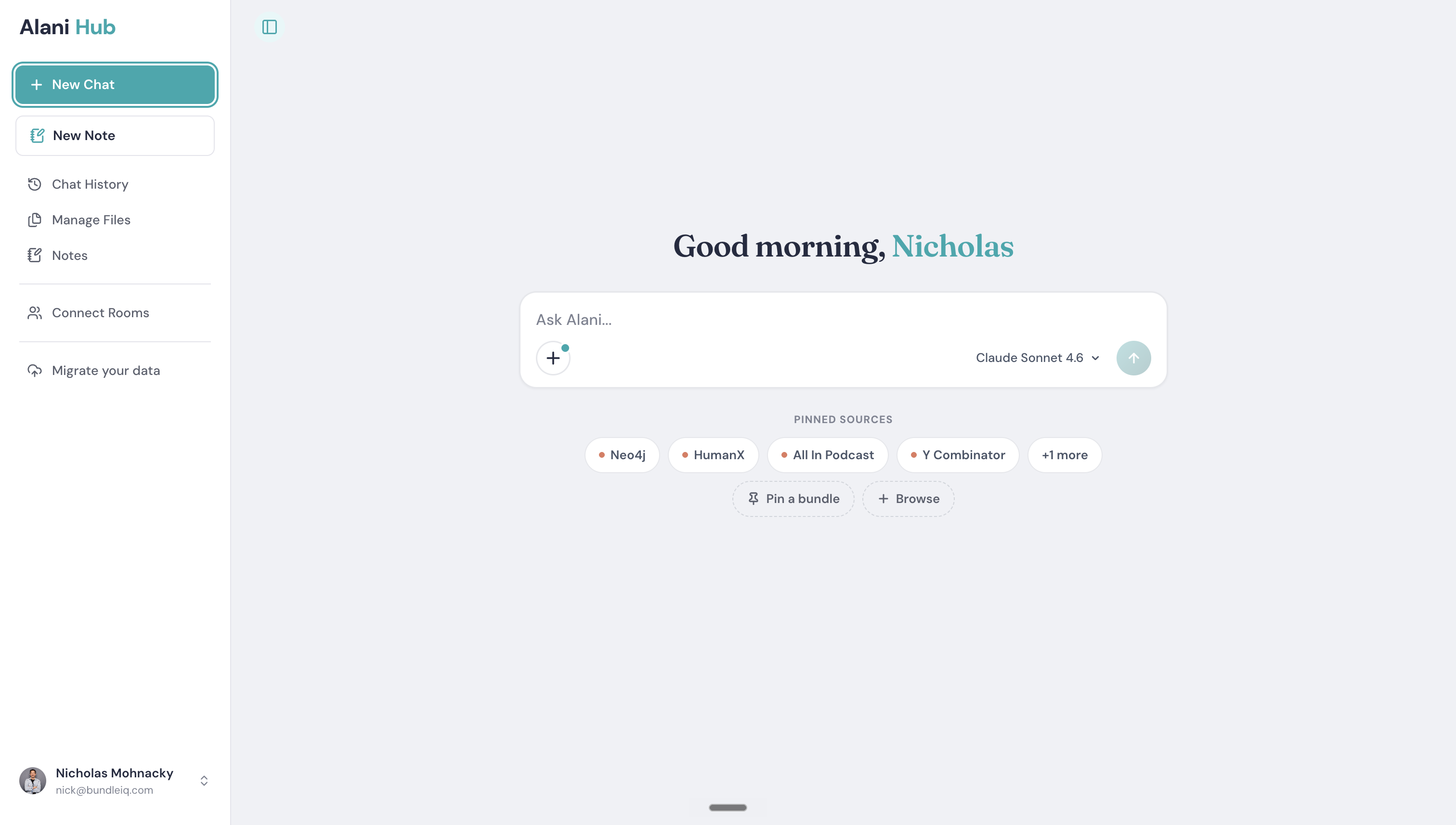
When you land on the homepage, you'll notice a refreshed look and feel. This is Alani Hub, evolved from Alani.ai.
Choosing Your AI Model
Alani Hub gives you access to multiple LLMs in one place. Currently available:
- OpenAI models
- Claude (Anthropic) models
- Minimax
Coming soon: Gemini and Grok.
Simply select the model you want before starting a chat.
Pinned Sources
Below the chat input, you'll see Pinned Sources. These are data bundles you've added to your homepage for quick access, such as Neo4j, HumanX, the All-In Podcast, and Y Combinator.
Tip: You can chat with multiple pinned sources simultaneously. Just select them and start asking questions.
2. Alani Connect: Browse Rooms
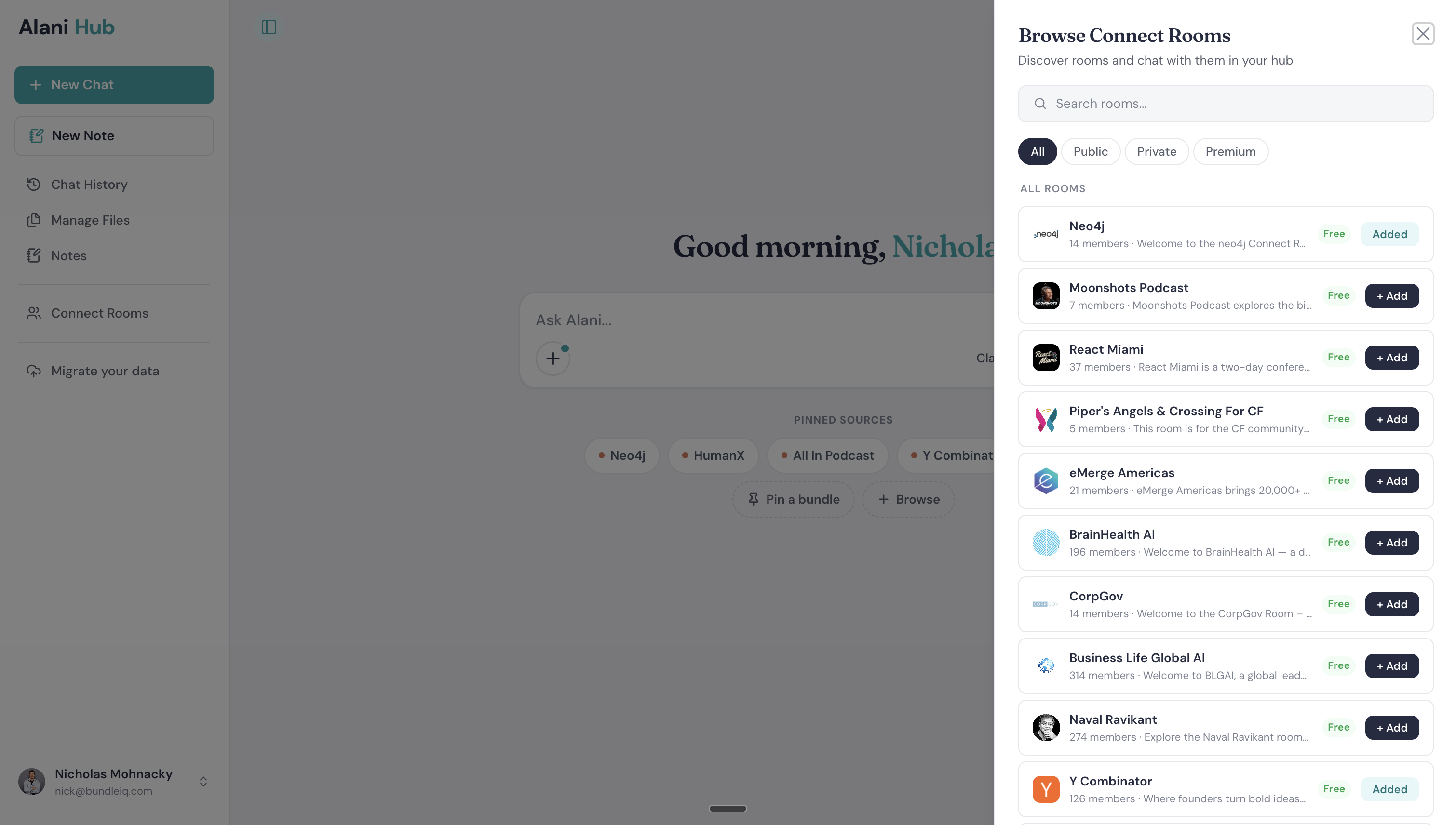
Click the Browse button on the homepage to open the Browse Connect Rooms panel. Here you'll find curated bundles from brands and organizations, such as eMerge Americas, React Miami, and BrainHealth AI.
Room Types
| Type | Description |
|---|---|
| Public | Free to access for anyone |
| Private | Invite-only |
| Premium | Paid subscription required |
Joining a Premium Room
- Click on a premium room (for example, HumanX at $299/year).
- Click Add.
- You'll be redirected to Stripe to complete checkout.
- Once subscribed, you get full access to chat with all the room's content.
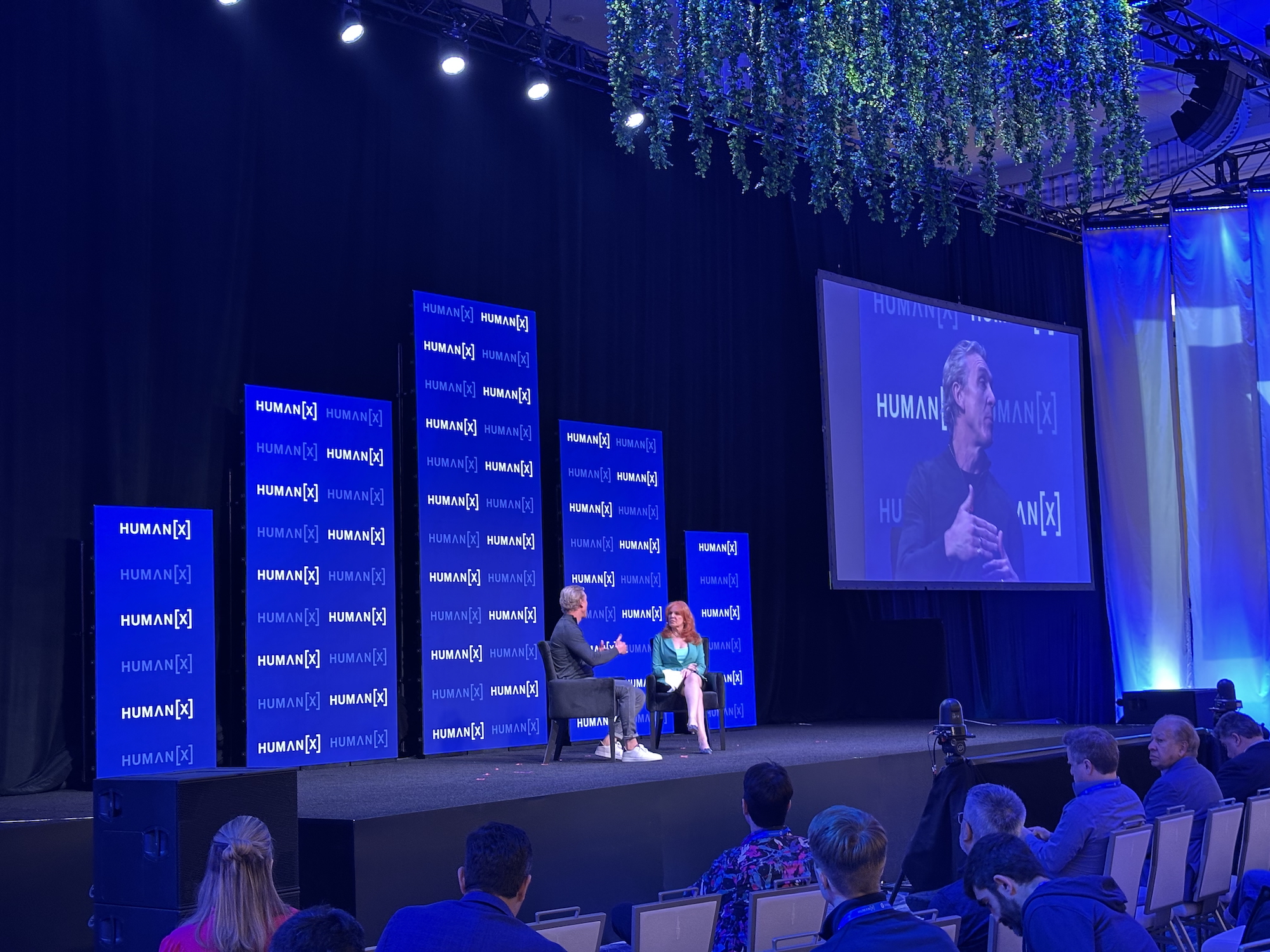
Example: The HumanX live event costs $3,500 or more to attend. With a $299 Hub subscription, you get access to 500+ keynote presentations and sessions, all searchable and conversational.
3. Left-Hand Navigation
The left sidebar is your command center. Here's what each item does.
New Chat
Starts a fresh AI conversation. Click this any time you want a clean slate.
New Note
Create and save notes directly inside Alani Hub.
- Click New Note to open the note editor.
- Use
/(forward slash) for quick Markdown commands:- Headers
- Lists
- Code blocks
- Plain text
- Notes are stored neatly in your Folder and can be shared with your team.
Use case: After a team stand-up, document action items, strategies, and decisions, all AI-powered and easily shareable.
Manage Files
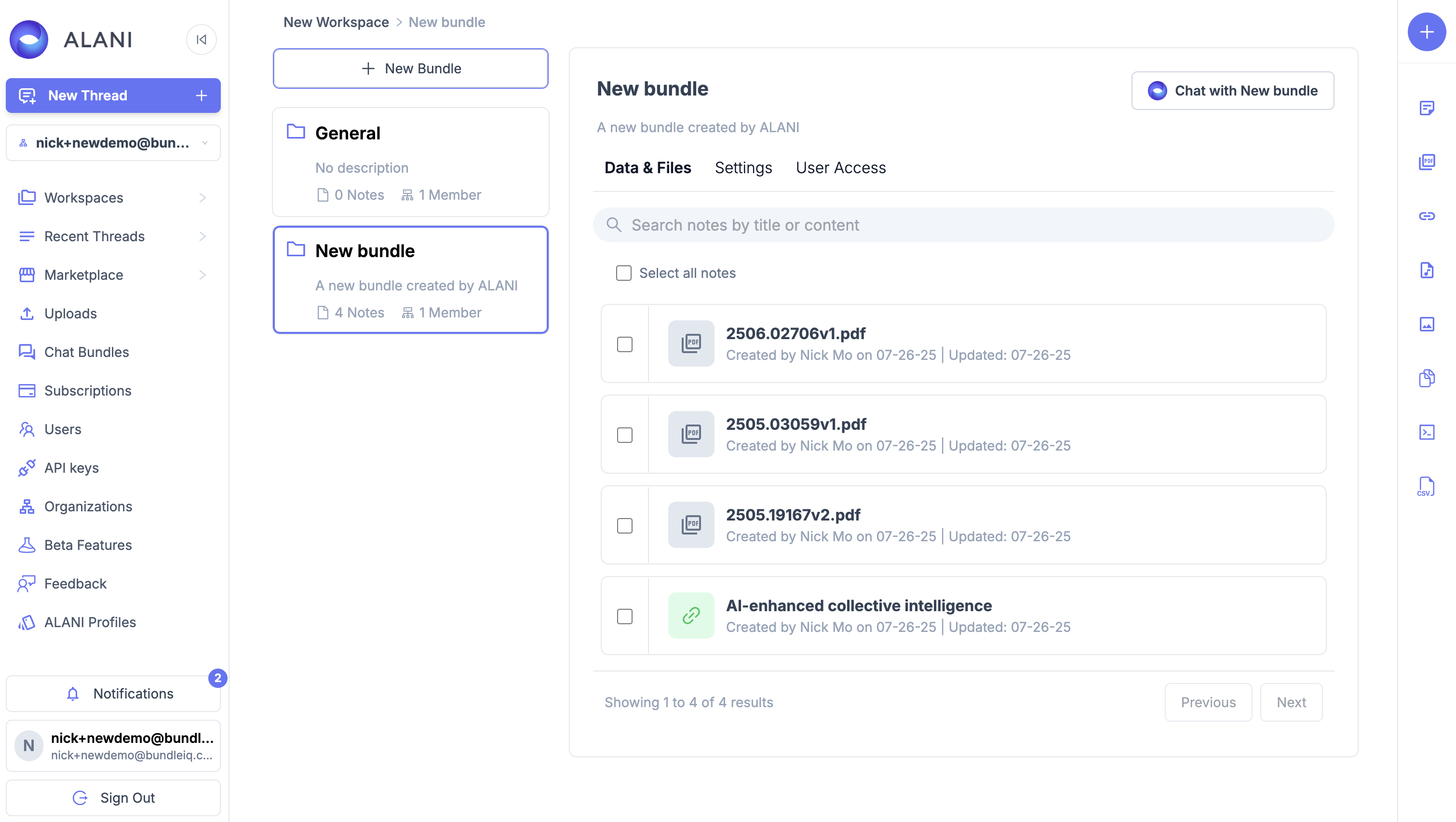
This is where all your uploaded content lives. The interface is intentionally flat and streamlined, just bundles and files.
Supported upload types:
- Text
- Markdown
- Images
- Audio files
- YouTube videos
- Entire YouTube channels
- Website URLs
Video and MP4 uploads are coming soon, hosted natively in Hub.
Pro tip: As you browse the web, save useful pages directly to your Alani Hub for free. Start building your personal knowledge base from anywhere.
Chat History
Every conversation you've had with Alani is saved here. Click any past chat to jump right back into it, full context intact.
Save Output as a Note
At the bottom of any chat response, you'll see a Save as Note button. Click it to instantly save any AI-generated insight to your Notes.
.png)
This is a unique Alani Hub feature, not available in ChatGPT or most other tools. Citations and sources referenced in the response are saved along with it.
4. Connect Rooms (Your Rooms)
Below Chat History, you'll find your Connect Rooms, all the rooms you've created, subscribed to, or moderate.
What is a Connect Room?
A Connect Room turns any bundle of data into a living community. Think of it as combining a knowledge base with a Reddit-style feed:
- Share information across your community.
- Invite stakeholders to collaborate inside the same knowledge space.
- Ask Alani questions about any content or person in the room, and it'll take you to the exact moment in a video, transcript, or document.
Creating a Room
- Click Create Room.
- Choose Public or Private.
- Follow the 5-step setup (takes just a few minutes).
- Your room is live and ready to share.
5. Account & Settings
In the bottom-left corner, you'll find:
- Usage: monitor your consumption.
- Plans: upgrade or manage your subscription.
- Profile: manage your account settings.
Quick-Start Checklist
- Choose your preferred AI model on the homepage.
- Pin your most-used sources for fast access.
- Upload your first file or paste a URL into Manage Files.
- Create your first Note.
- Browse Connect Rooms for relevant public or premium content.
- Create your own Connect Room to share knowledge with your team.
That's Alani Hub in a nutshell. Whether you're organizing research, collaborating with a team, or tapping into curated knowledge communities, everything lives in one AI-powered place.
Frequently Asked Questions
What is Alani Hub?
Alani Hub is an AI-powered personal knowledge base built by bundleIQ. It lets you upload your own content, chat with multiple large language models in one place, save AI responses as notes, and turn any collection of data into a searchable, shareable community called a Connect Room. It evolved from Alani.ai.
Which AI models does Alani Hub support?
Alani Hub gives you access to multiple LLMs in a single interface. Currently available models include OpenAI, Claude (Anthropic), and Minimax. Gemini and Grok are coming soon. You select the model you want before starting each chat.
What file types can I upload to Alani Hub?
Alani Hub supports PDFs, text files, Markdown, images, audio files, YouTube videos, entire YouTube channels, and website URLs. Native video and MP4 uploads are coming soon. You can save useful web pages to your knowledge base for free as you browse.
What is a Connect Room?
A Connect Room turns any bundle of data into a living community, combining a knowledge base with a Reddit-style feed. You can share information across your community, invite stakeholders to collaborate in the same knowledge space, and ask Alani questions about any content or person in the room. Alani will take you to the exact moment in a video, transcript, or document.
How much does Alani Hub cost?
Browsing public Connect Rooms is free. Premium rooms require a paid subscription billed through Stripe. For example, the HumanX premium room is $299 per year and unlocks 500+ keynote presentations and sessions, all searchable and conversational. Attending the HumanX live event by comparison costs $3,500 or more.
Can I save AI chat responses in Alani Hub?
Yes. At the bottom of any chat response, click the Save as Note button to instantly save any AI-generated insight to your Notes. Citations and the sources referenced in the response are saved along with it. This is a feature unique to Alani Hub and not available in ChatGPT or most other tools.
How is Alani Hub different from ChatGPT or NotebookLM?
Alani Hub combines multiple LLMs, a personal knowledge base, and community sharing in one place. Unlike most AI chat tools, it lets you save AI responses as notes with their citations and sources intact, chat with several of your own pinned sources at once, and turn your data into shareable Connect Rooms. It is built by bundleIQ on a patented collective intelligence and knowledge graph architecture.
Can I chat with more than one source at a time?
Yes. You can pin your most-used sources to the homepage and select multiple pinned sources at once, then ask questions across all of them in a single chat.
Who makes Alani Hub?
Alani Hub is made by bundleIQ, the company behind the Alani AI brand. Alani includes three products: Alani Hub for personal knowledge management, Alani Connect for publisher content and community, and Alani Insights for enterprise data intelligence.

Ready to put your information to work?
Pick a product. Start free or talk to our team.